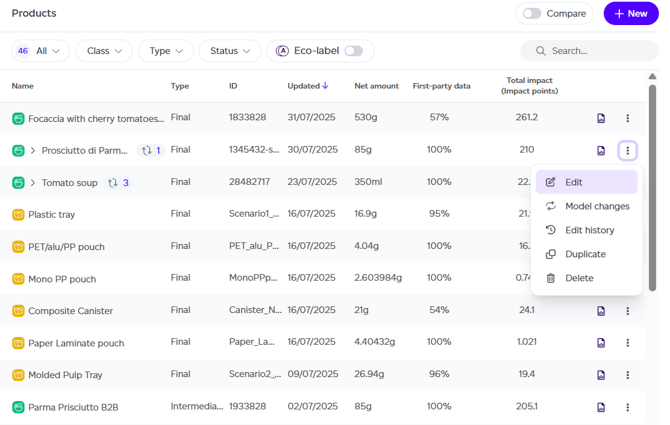
From the Products tab, you can easily edit any existing product record or draft. To do this, select the three-dot menu next to the product name and choose the 'Edit' option from the product list.
This action will take you directly to the product graph, which will be pre-filled with all the information that was initially entered when the record was created. From here, you can modify any aspect of the product's lifecycle.
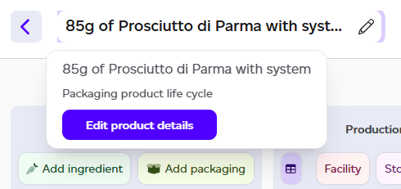
If you need to update any generic product details (such as the product's name, ID, or add a picture), simply click on the pen icon next to the product's name and then 'Edit product details'. This will take you back to the details tab where you can specify all generic information about your product.
Once you've completed all the necessary changes, click the 'Save changes' button to generate a new report, which will replace the old one.
If you encounter any errors and want to save the progress made during your editing session, you can choose to 'Save as draft'. This will save all changes and revert the product to draft status.