Accessing the supplier management features requires navigating to Manage in the top menu, then selecting Providers & Suppliers. This takes you to a tab where you can view the list of all Providers & Suppliers across your entire company account, not just within the active workspace.
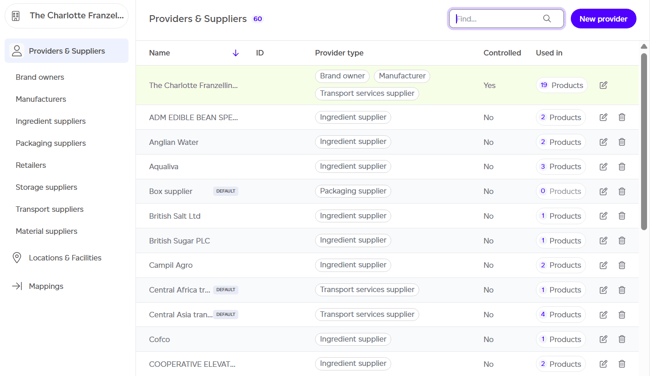
By default, your company appears as one entry with the type 'Brand owner'. You can modify this to match your actual business model, such as manufacturer, brand owner, or ingredient supplier. A single supplier entry can represent multiple provider types simultaneously.
Available Actions
The following operations are available in this section:
- Create a new provider by clicking the 'New provider' button.
- Search for specific providers by name (requires at least one existing provider).
- Filter by provider type using the left menu.
- Sort by different table fields.
- Edit provider details.
- Navigate to other Manage tab sections.
Creating a New Provider
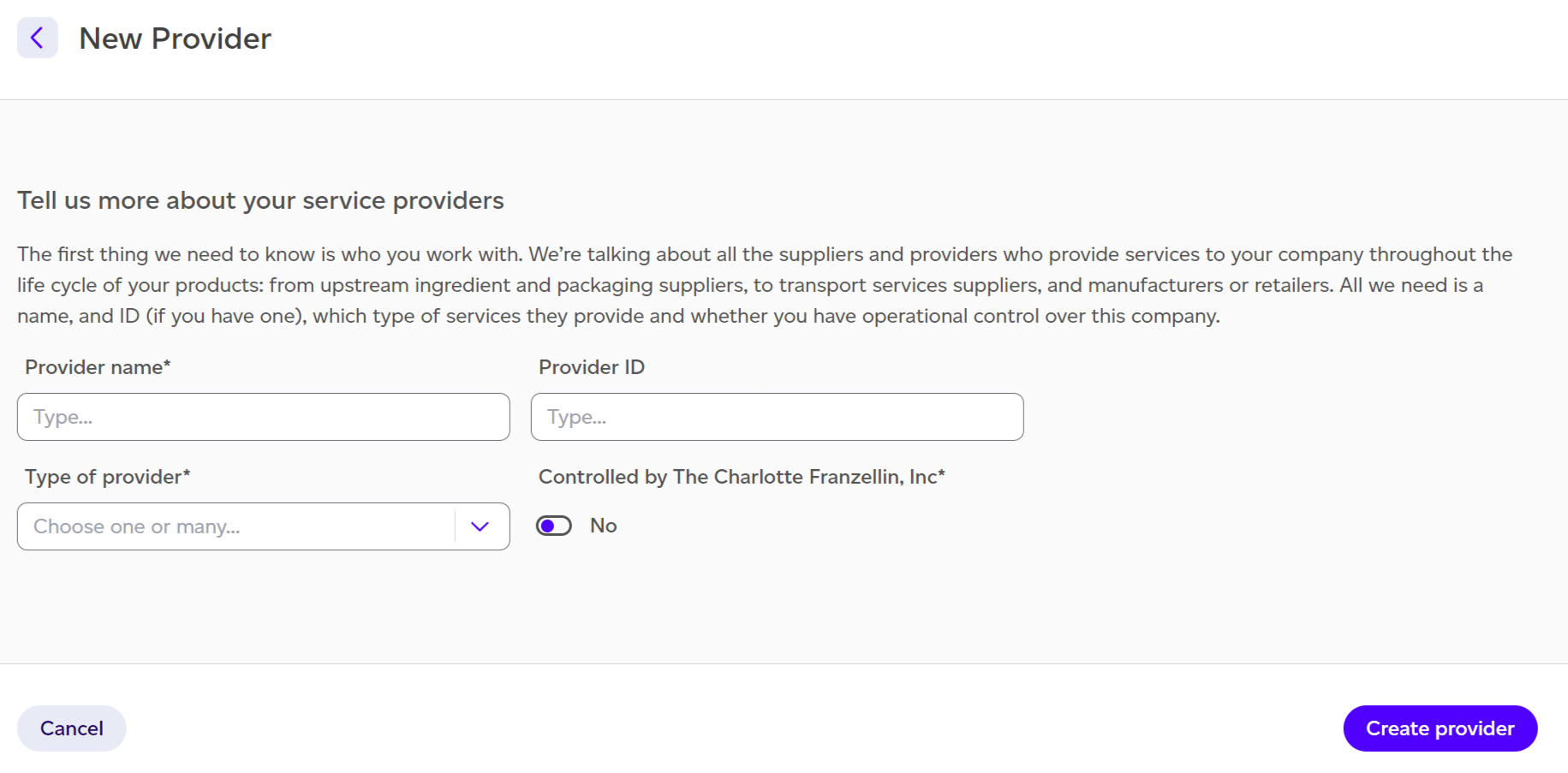
When establishing a new provider entry, you must provide:
- Provider name.
- Provider ID (optional field).
- Type of provider — select one or more categories (manufacturer, brand owner, ingredient supplier).
- Controlled by you toggle — indicates whether this provider operates under your company's control, which affects reporting.