Clicking on Manage in the top menu and then selecting Locations & Facilities will take you to the locations management tab. Here, you can view the list of all Locations & Facilities across your entire company account, not just within the active workspace. If no locations have been created yet, the list will be empty.
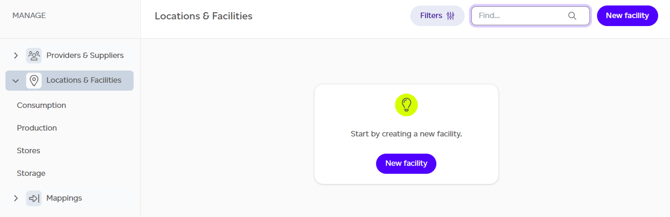
Several actions are available in this section:
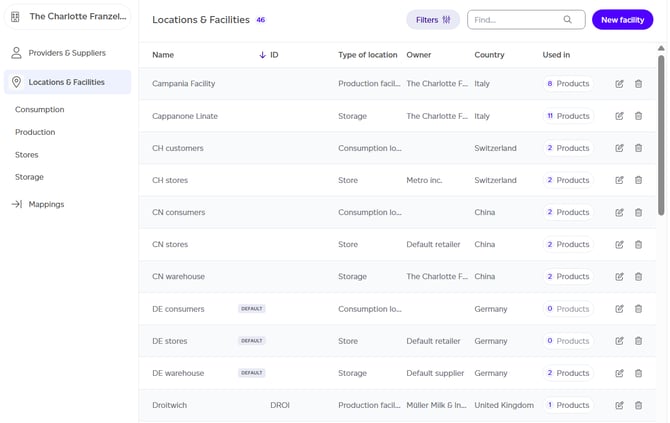
- To create a new location, click the 'New facility' button.
- If at least one location has been created, you can also:
- Search for a specific location by name.
- Filter by location type (using the left menu), owner, or country (via the filters menu).
- Sort by different fields in the table.
- Edit a location's details.
- Navigate to other sections of the Manage tab using the left menu.
Creating a New Location
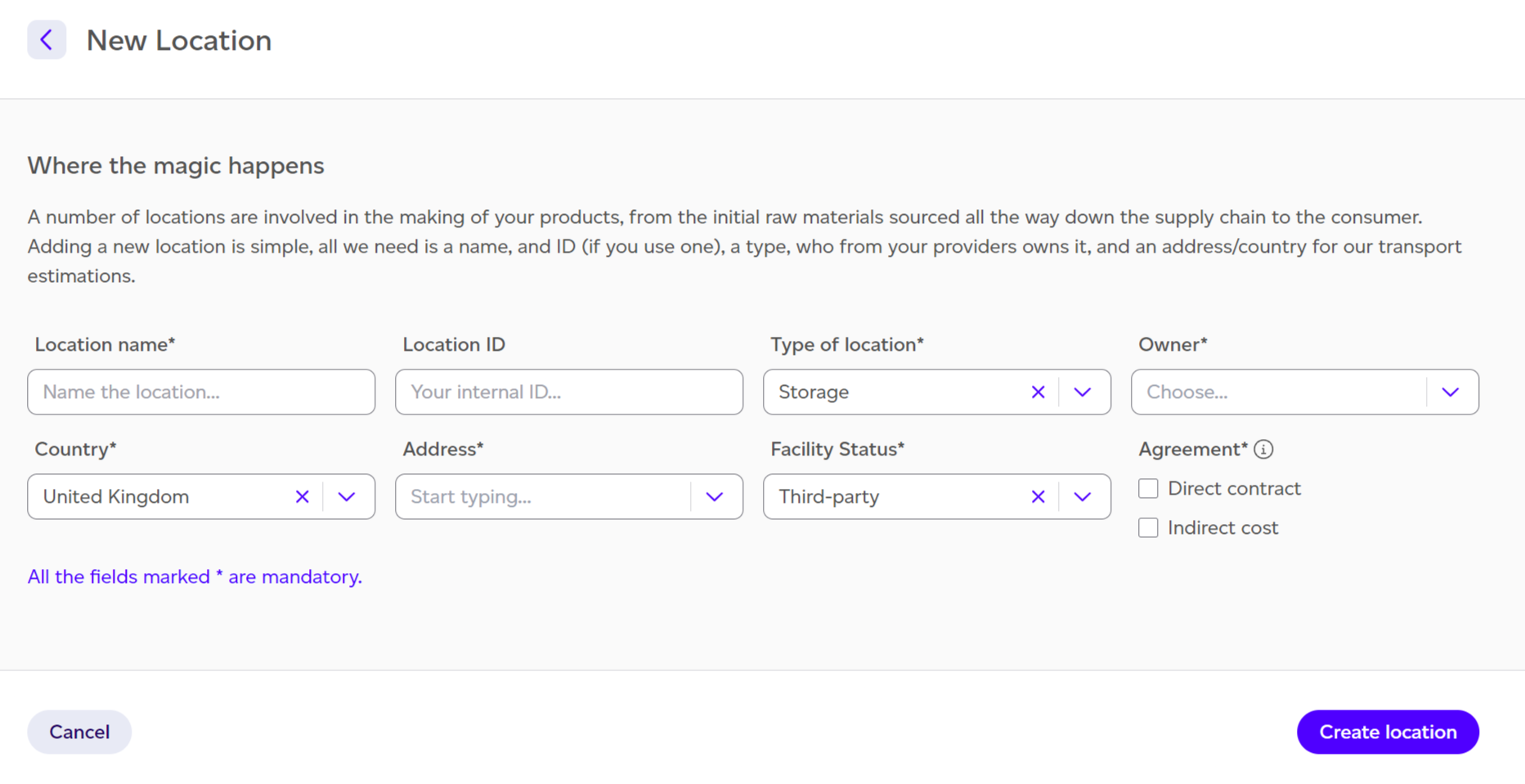
When you choose to create a new location record, you'll be prompted to provide the following information:
- Location name.
- Location ID (optional).
- Type of location: Whether it's a production facility, a warehouse, a store, or a consumption location.
- Owner (if applicable): Who owns this facility from your suppliers list.
- Country: The country where the location is based.
- Address: The exact location within the country.
- Facility status (if applicable): Whether it's owned, rented, or third-party.
- This is important for Scope 3 classification.
- Agreement type (only applicable to stores and warehouses that are third-party owned): Helps define whether you're paying for the service directly or indirectly.